
In this guide, you’ll learn how to log in to the admin area of your WordPress website. From the WordPress dashboard, you can edit pages, manage images and change other website content, among other things. The screenshots show the Dutch version of WordPress; the steps and settings are the same in English.
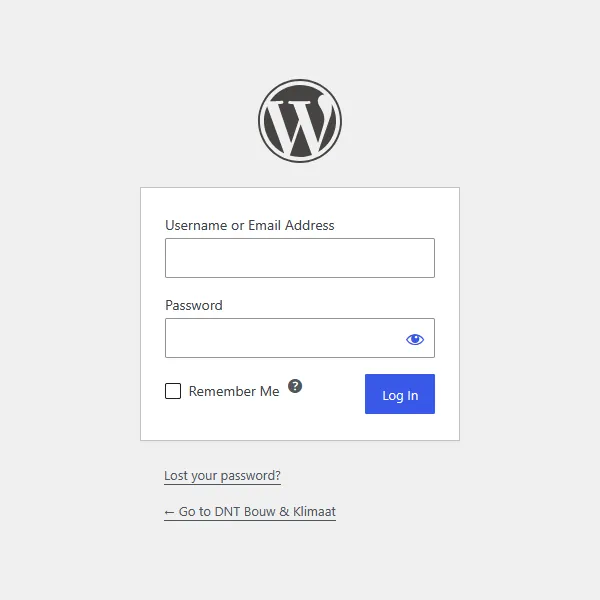
Open the WordPress login page
Open your browser and go to your website’s address followed by /wp-admin/.
For example:
https://yourdomain.com/wp-admin/
You’ll automatically be taken to the WordPress login page.
Enter your details and log in
Under Username or Email Address, enter the username or email address of your WordPress account.
Then enter your WordPress account password and click Log In.
You can click the eye icon in the password field to check that you’ve entered the password correctly.
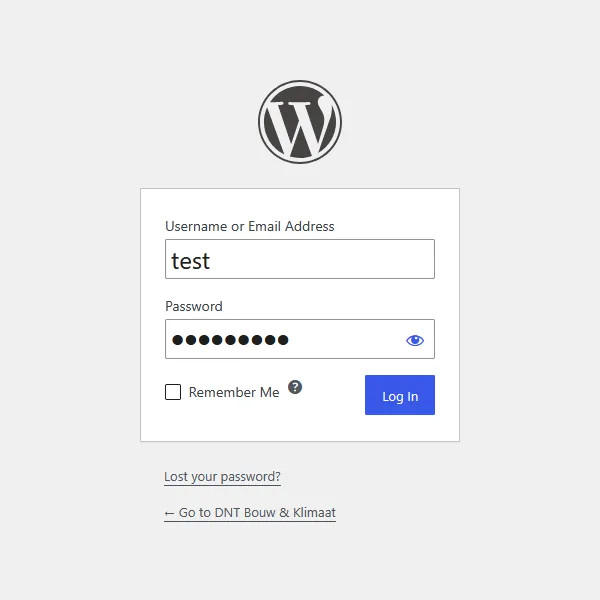
Ideally, use a unique, strong password for your WordPress account.
You’re logged in
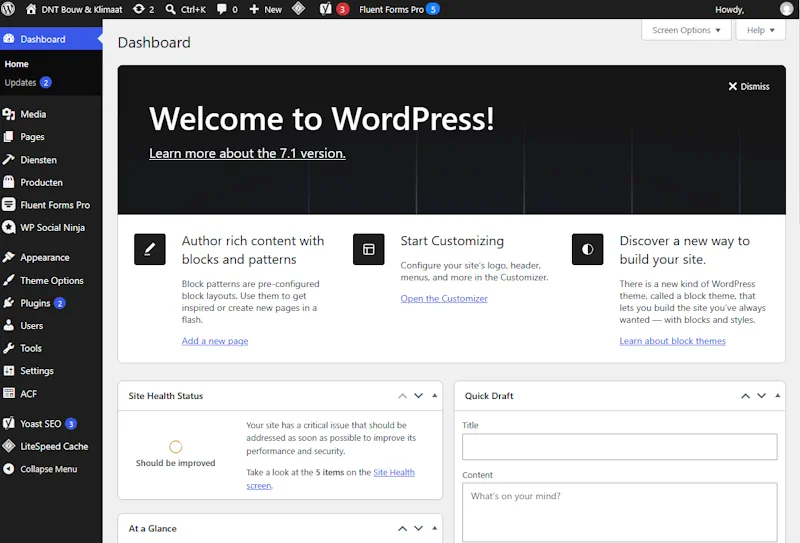
After logging in, you’ll land in the WordPress dashboard.
On the left is the main menu, which gives you access to areas such as:
- Pages
- Posts
- Media
- Comments
- Users
- Settings
Which items you can see depends on the permissions of your WordPress account.
Forgotten password
Can’t log in any more? Below the login form, click Lost your password?
Then enter your username or email address. WordPress will send you an email that lets you set a new password.
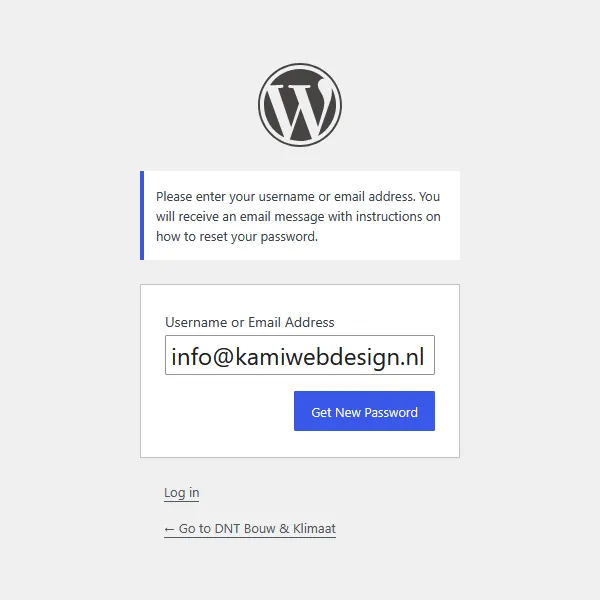
Not received an email? Check your spam or junk folder first.
Additional information
Can’t log in? Check that Caps Lock is off and that you’re using the right account: your WordPress account is separate from your email address with us and from your hosting account. If it still doesn’t work, use the ‘Forgotten password’ step above.
Tip: bookmark the login page so you don’t have to remember the address. Do several people work on the website? Then give everyone their own account, as explained in creating a user in WordPress.
Would you rather we made the changes? With a maintenance plan, we take care of it for you. Also take a look at the other WordPress guides.


