
In this guide, we explain step by step how to set up your business email address manually in Microsoft Outlook. The screenshots show the Dutch version of Outlook; the steps and settings are the same in English.
All screenshots in this guide were taken in the classic version of Outlook for Windows. If you use a different or newer version of Outlook, the screens and labels may differ slightly. The account details you need stay largely the same.
Add an account
Open Microsoft Outlook.
Click File in the top left, then choose Add Account.
Depending on your version of Outlook, you may also find this option under Account Settings or Settings → Accounts.
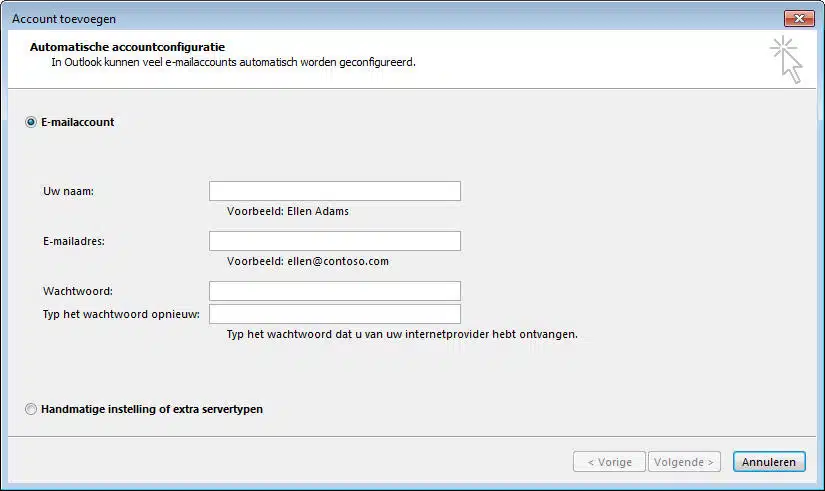
Choose manual setup
Outlook usually tries to configure your email address automatically.
Choose Manual setup, Advanced options or Let me set up my account manually.
Then continue to the account type selection.
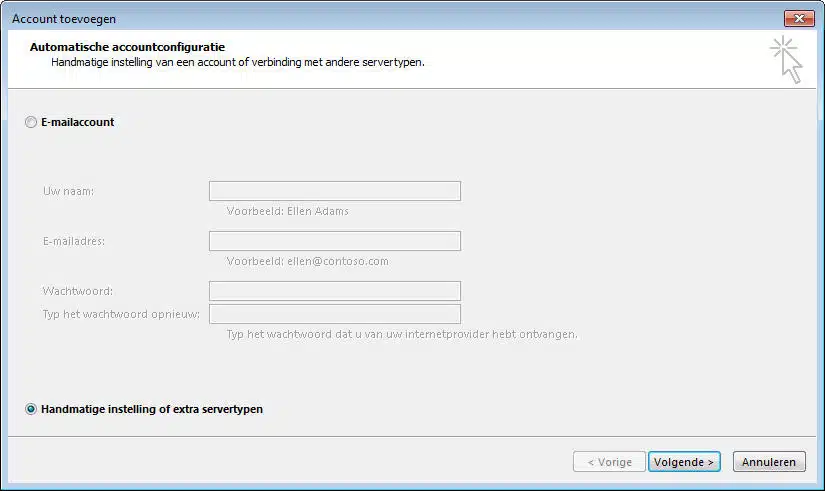
Choose IMAP
Select IMAP as the account type.
We recommend IMAP because it keeps your messages on the mail server and syncs them automatically between your computer, phone and other devices.
Only use POP if you have deliberately chosen it.
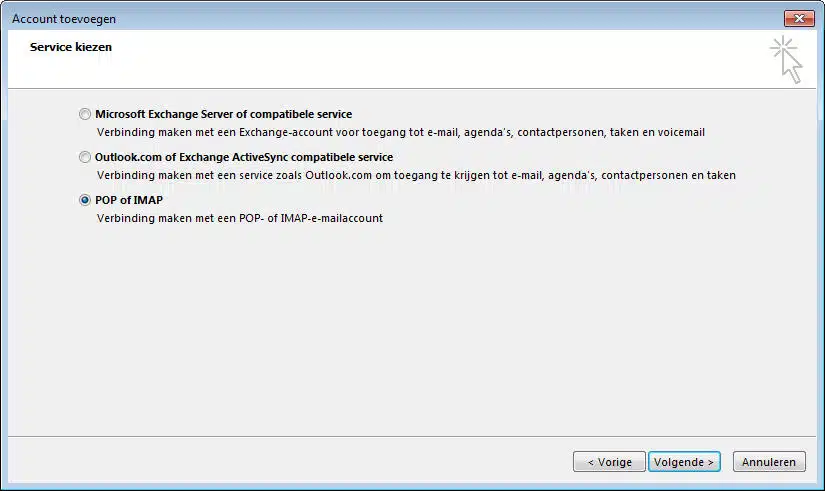
Enter your account details
Enter your name and full email address.
For incoming mail, use:
Account type: IMAP
User name: your full email address
Password: your mailbox password
IMAP port: 993
Encryption method: SSL/TLS
For outgoing mail, use:
SMTP port: 587
Encryption method: STARTTLS
If port 587 doesn’t work, you can use 465 with SSL/TLS instead.
For the IMAP and SMTP server name, enter the server details you received from Kami Webdesign.
Then click More Settings if this option is available.
Set up the outgoing mail server
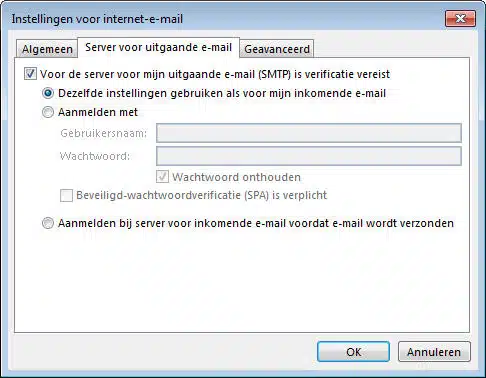
Open the Outgoing Server tab.
Tick:
My outgoing server (SMTP) requires authentication
Next, select:
Use same settings as my incoming mail server
This setting is important. Without SMTP authentication, you may be able to receive email but not send it.
Then click OK.
Check the advanced settings
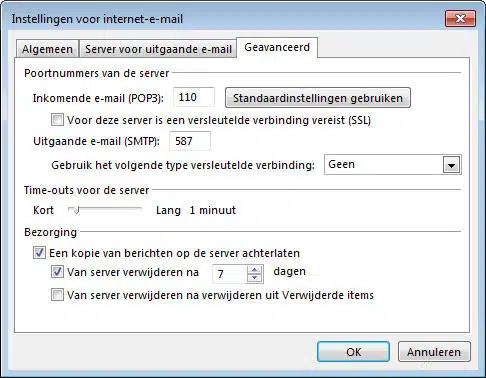
If available, open the Advanced tab and check the ports.
Incoming mail
IMAP
- Port: 993
- Encryption method: SSL/TLS
Outgoing mail
SMTP
- Port: 587
- Encryption method: STARTTLS
If 587 doesn’t work:
- Port: 465
- Encryption method: SSL/TLS
Then click OK, followed by Next or Done. Outlook will now check whether it can connect to the mail server.
Check that everything works
Send a test email to another email address, then send a reply back. This way, you can check that both sending and receiving work correctly.
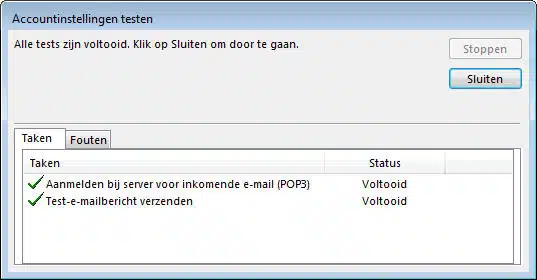
If Outlook can’t connect, first check your email address, password and server details. An incorrect password is a common cause of a failed login.
Additional information
If you use a newer version of Outlook, the screens and labels may differ slightly. Always use the server details you received from Kami Webdesign.


